
Getting Started with the Pro Version #
By activating the Pro version, you unlock a range of AI-driven features that enable you to efficiently create hotel bookings, tours, apartment listings, and car rentals, all while maintaining complete creative control.
Step 1: Initial Setup (Giving the AI Its Power) #
Before using any AI features, you need to connect your system to the AI service.
- Go to Tourfic Settings > AI Settings
- Paste your OpenAI API Key
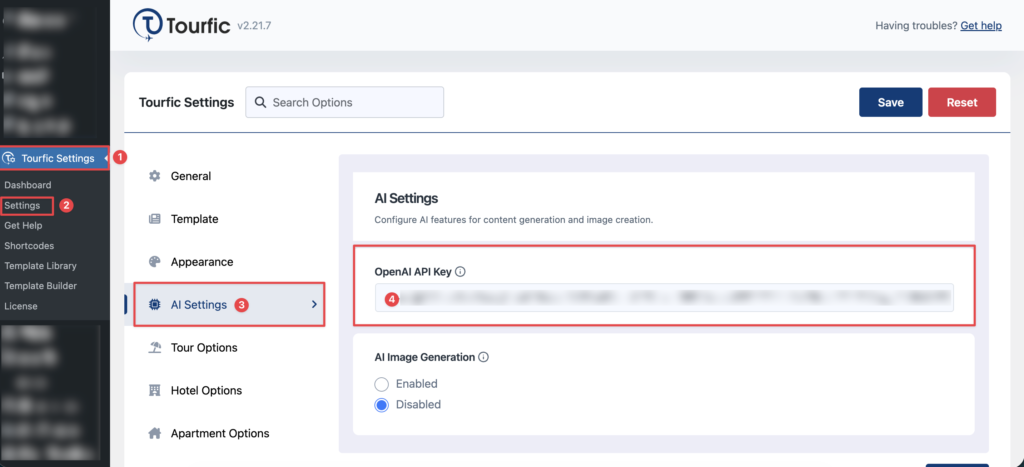
This step is essential because the AI cannot function without being connected to its power source. You can also:
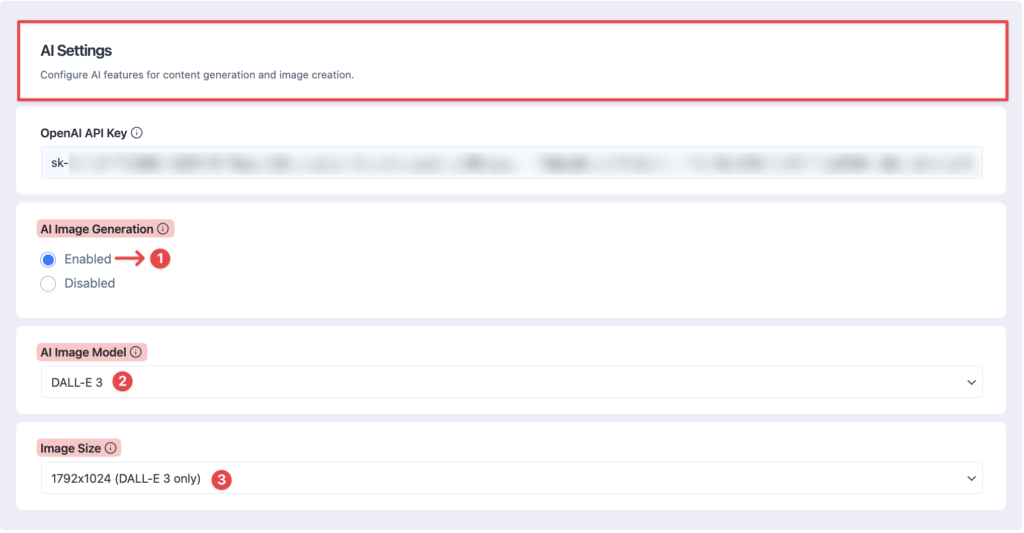
- Choose your preferred image model (e.g., DALL·E 3)
- Set the image size (e.g., landscape for banners)
Quick Guide to Get Your API Key #
To use AI features, you need an OpenAI API key. Simply create an account, follow the setup steps, and generate your key from the dashboard. Once done, copy and use it in your plugin settings to activate AI functionality.
Steps to Get API Key #
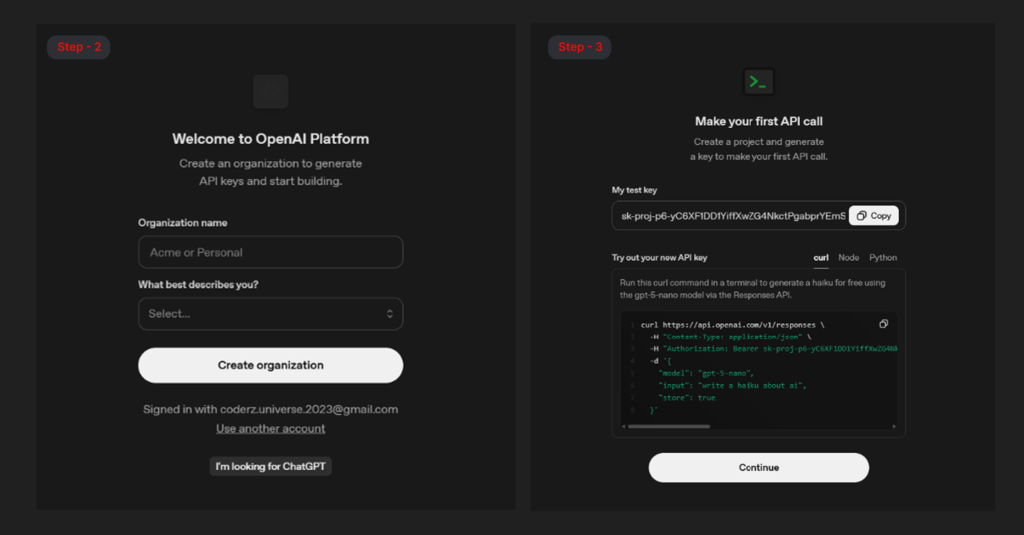
- Step 1: Visit: https://platform.openai.com/welcome?step=create
(Sign up or log in to your account) - Step 2: Create an organization and follow the setup to generate your API key.
- Step 3: Copy the API key from your dashboard and paste it into your AI settings.
Example:
Think of this like activating a high-tech robot. The API key is the battery that brings it to life and allows it to perform tasks.
Step 2: The Simple Prompt (Quick & Easy Method) #
This method is perfect when you have a general idea and want quick results.
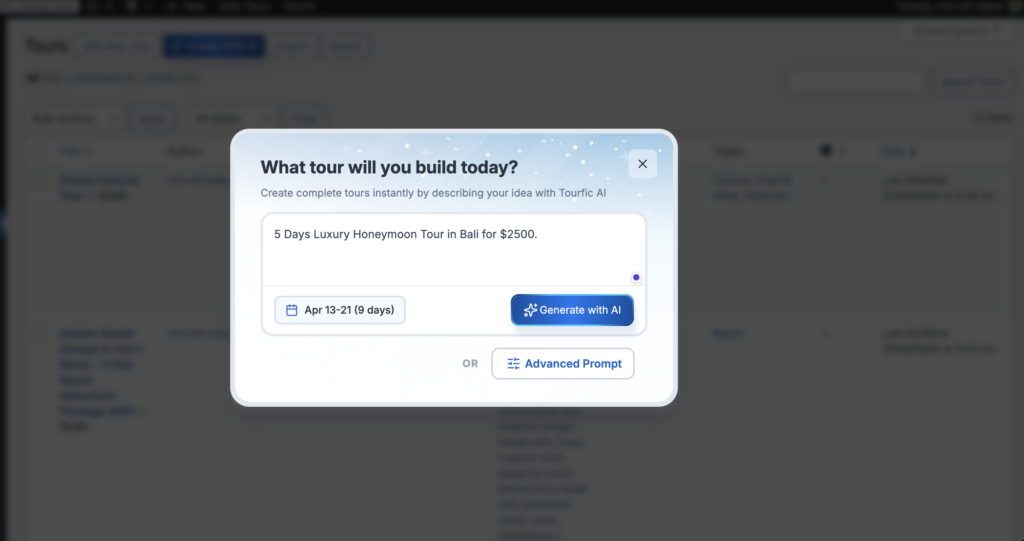
- Select “Simple Prompt” in the AI creator
- Enter a short description of your tour
The AI will automatically:
- Research the destination
- Create a full itinerary
- Set pricing based on your input
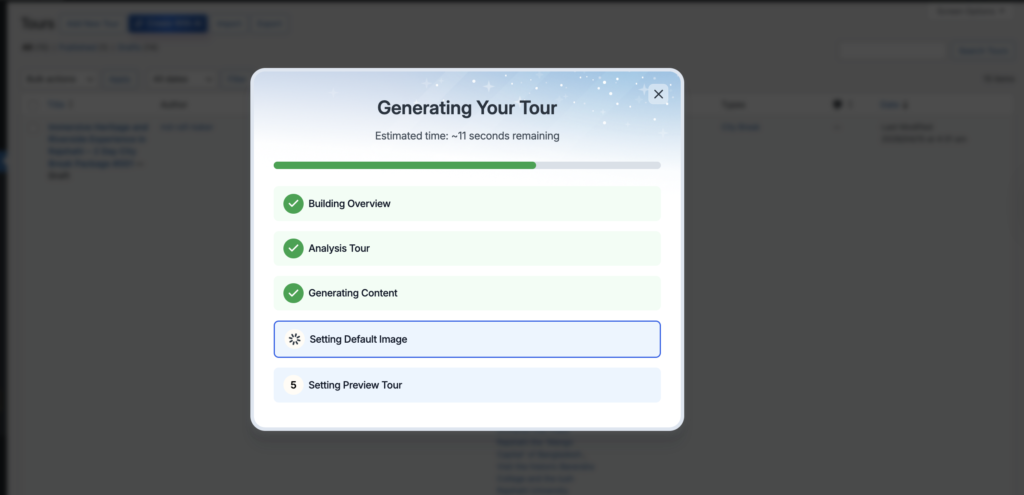
Example:
Input: “5 Days Luxury Honeymoon Tour in Bali for $2500”
Output: A complete tour plan including destinations, daily schedule, and pricing—just like a travel agent preparing a full package for you.
Step 3: The Advanced Prompt (Full Control Method) #
Use this when you want detailed customization and control over every aspect.
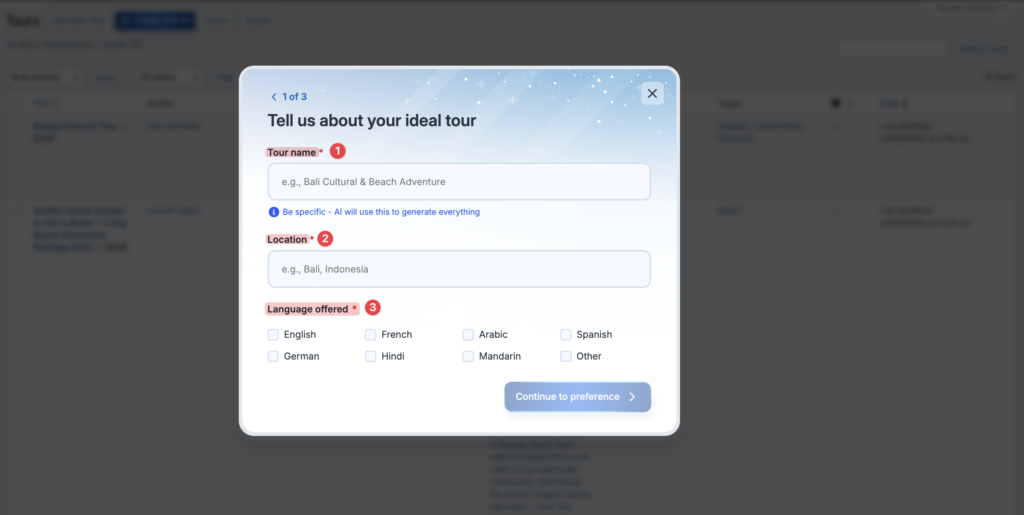
Follow the 3-step wizard shown in the interface:
Step 1: Tour Basics #
- Enter Tour Title / Idea
- Select Location
- Choose Language
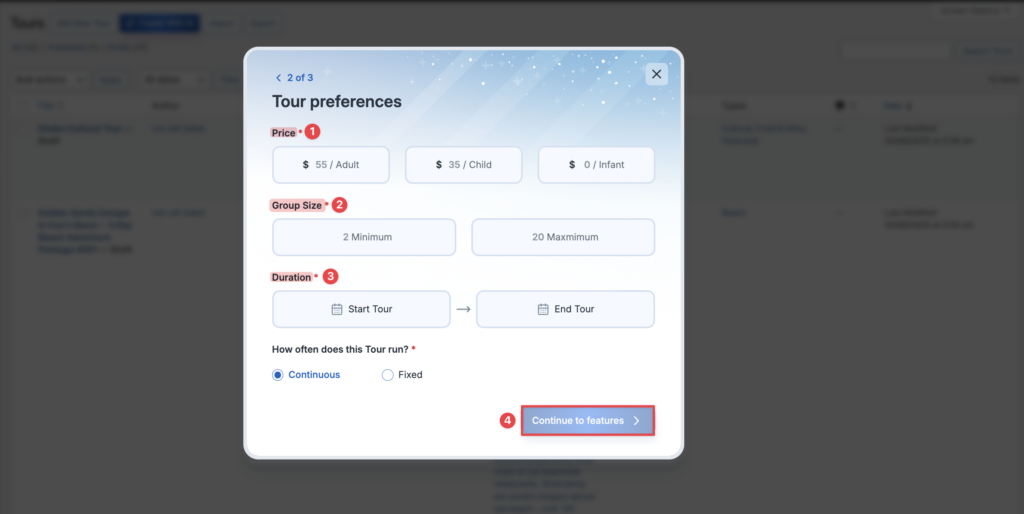
Step 2: Tour Preferences #
- Set Pricing (Adult, Child, Infant)
- Define Group Size (Min & Max)
- Select Duration (Start Tour / End Tour)
- Choose how the tour runs (e.g., Continuous or Fixed)
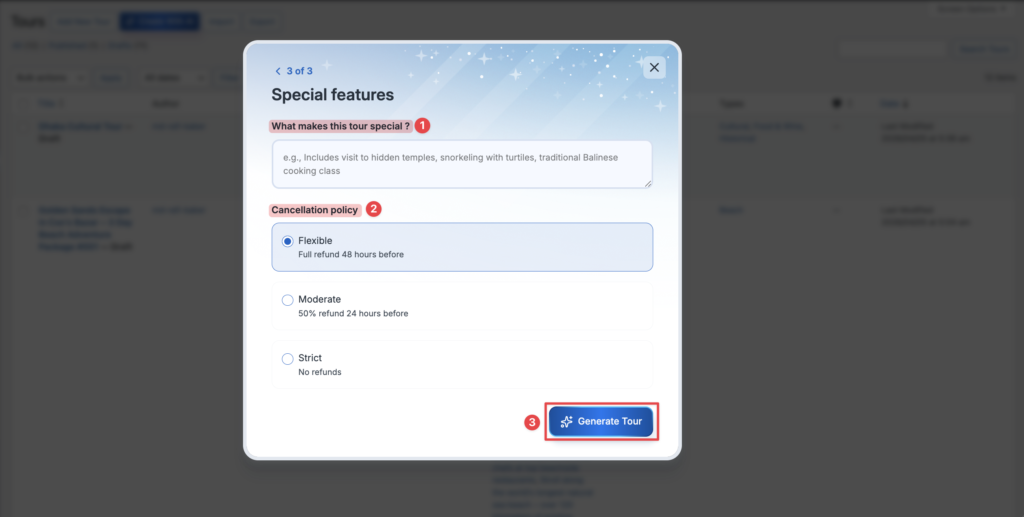
Step 3: Special Features & Policies #
- Add Special Features (e.g., meals, activities, facilities)
- Set Cancellation Policy (Flexible / Moderate / Strict)
What This Method Controls #
This method gives you full control over your tour, including pricing, age-based rules, group size, duration, features, and cancellation policies. It allows you to define every detail so the AI generates a tour exactly as you want.
Example: For example, you create a Sajek Valley tour with custom pricing, group size, duration, features like campfire and breakfast, and a no-refund policy within 24 hours. The AI uses this input to generate a complete, ready-to-use tour.
Step 4: Generating Images (Visual Content Creation) #
Tourfic AI Configuration #
High-quality images help make your tours more attractive and engaging.
- Enable AI image generation
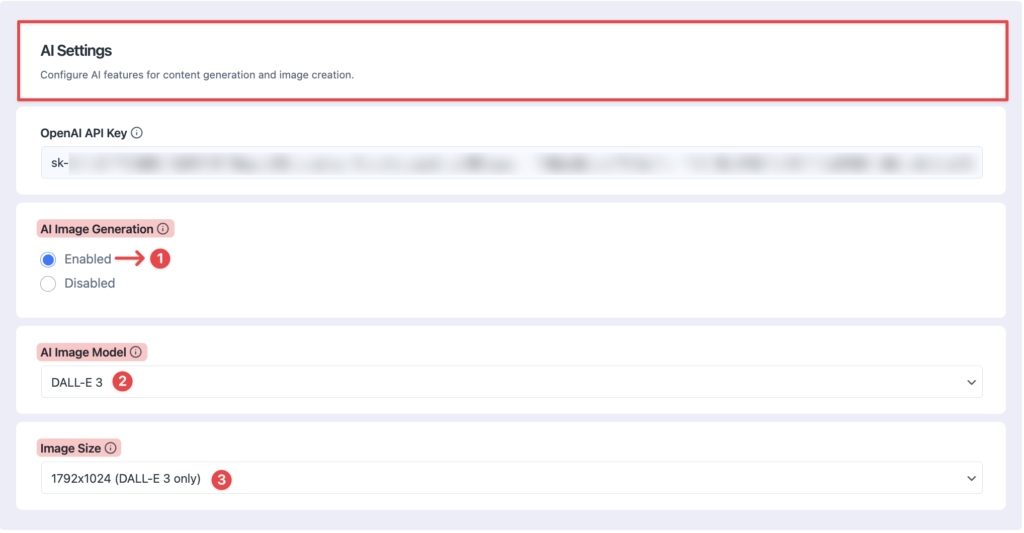
The AI will:
- Generate custom visuals based on your tour
- Match the image style with your content
Note: If you’re not happy with the generated image, you have two easy options. You can use a custom prompt to create an image tailored to your vision, or simply regenerate it to let the AI produce a new variation automatically.
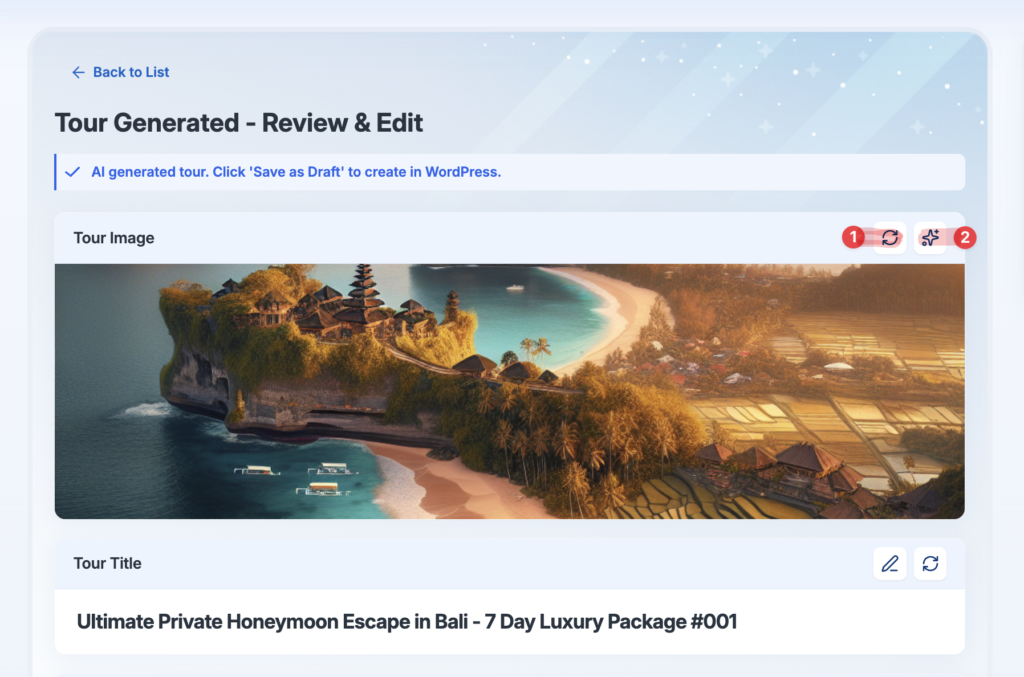
- Custom Prompt Image:
Use this option to create a fully customized image by writing your own prompt. This gives you complete control over the style, scene, and details based on your needs. - Auto Regenerate:
If you’re not satisfied, click regenerate to automatically create a new image based on the existing tour content.
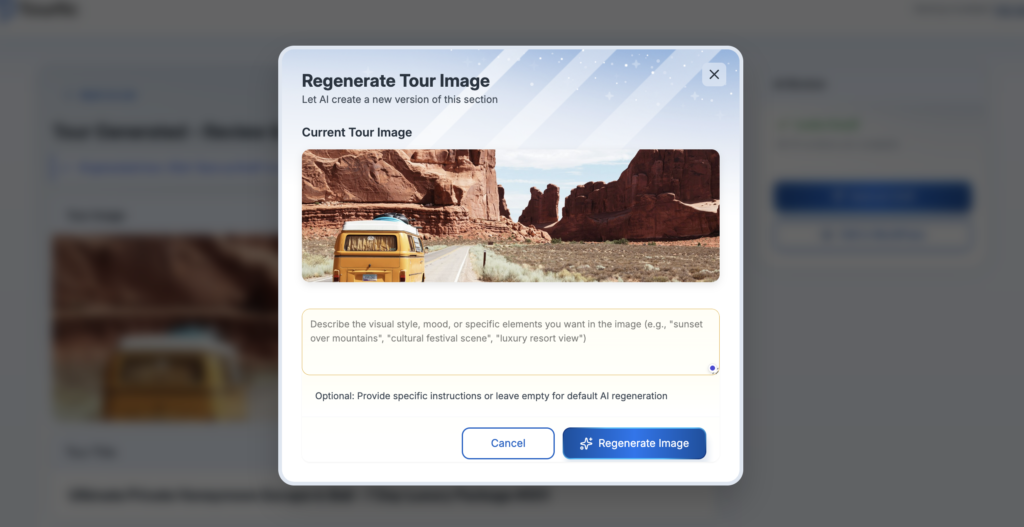
Example: For a Forest Camping tour, the AI will create a cinematic image of a tent under the stars in a lush forest—perfectly aligned with your tour theme.
Step 5: Review and Edit (Final Quality Check) #
Even though AI does most of the work, you have full control over the final output.
- Use “Regenerate” or “Edit” options
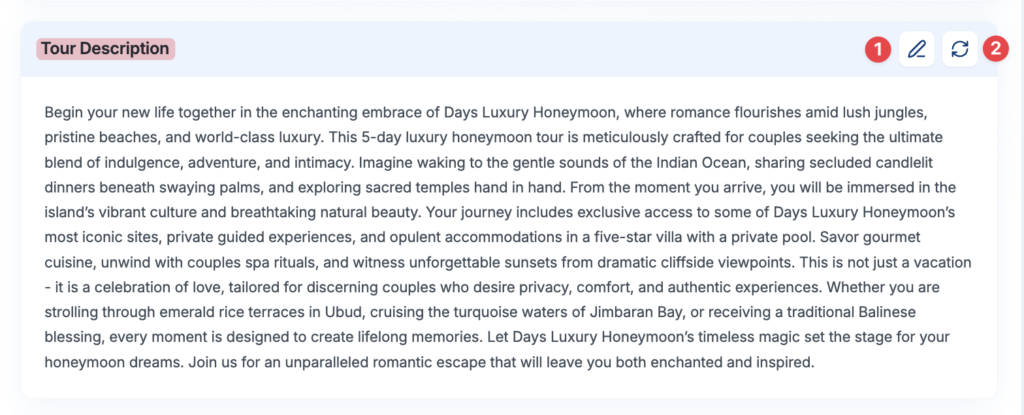
You can:
- Modify & Adjust itineraries
- Refine tone or style
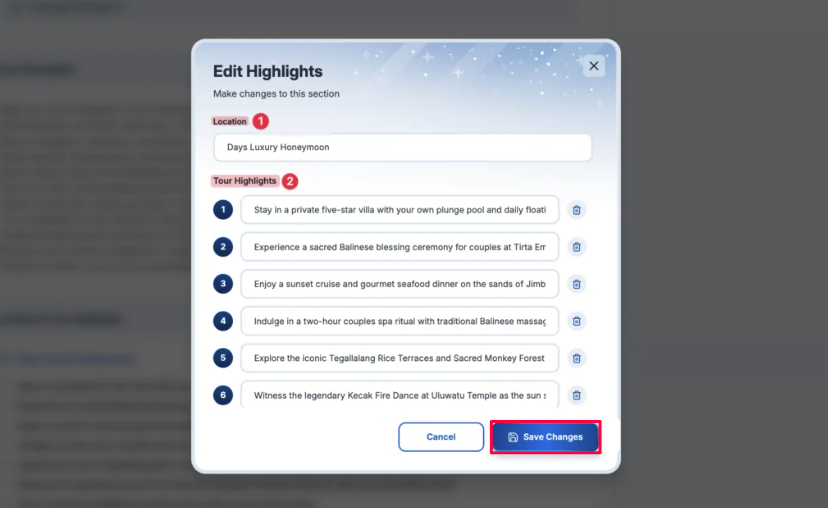
Example:
If the AI writes “Breakfast included” but you prefer “Candlelight Dinner”, you can easily edit it or ask AI to rewrite the content in a more romantic tone.
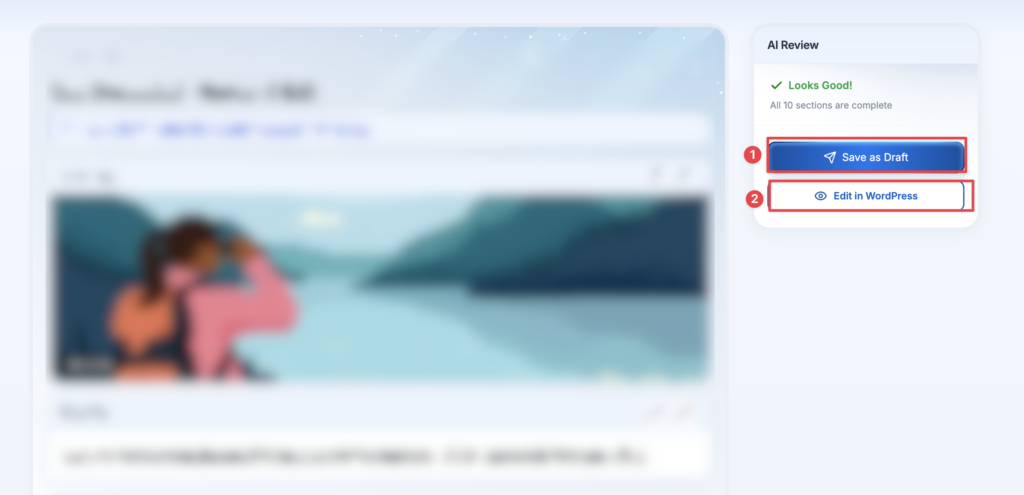
Click “Save as Draft” to store your generated tour without publishing it. This allows you to review or make changes later before going live.
Click “Edit in WordPress” to open the tour in the WordPress editor, where you can manually adjust content, layout, or any details.
Final Step: Publish Your Tour #
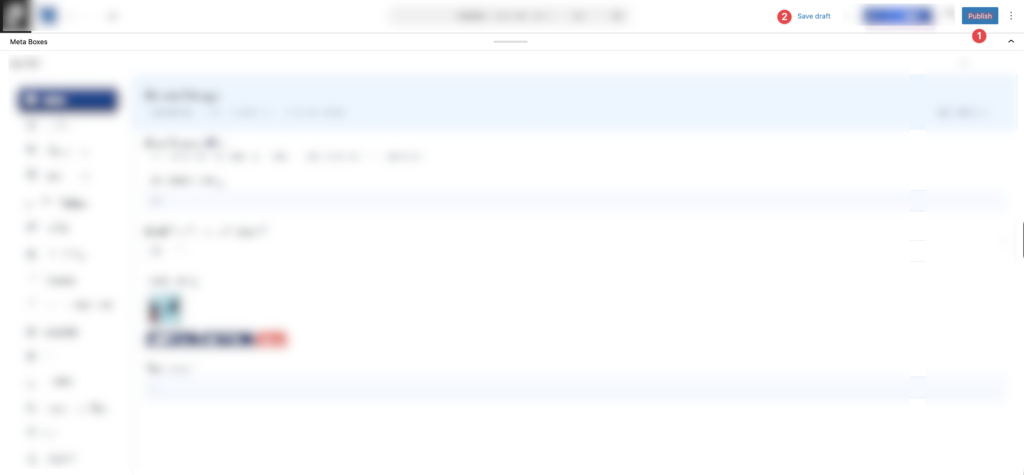
Once everything looks perfect, click “Publish” to make your tour live on your website for visitors to see and book.
Vendor Dashboard #
How to Access the Vendor Dashboard #
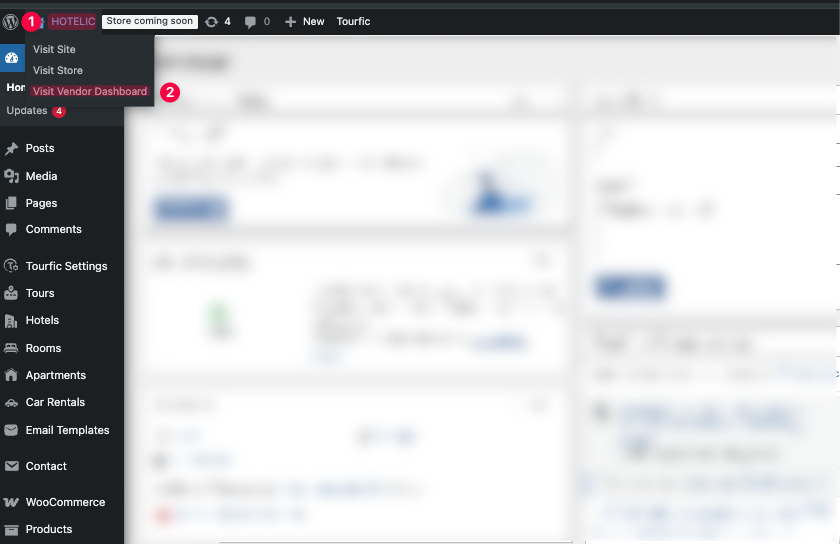
From your WordPress admin panel, click on “Hotelic” in the top menu, then select “Visit Vendor Dashboard.” This will take you directly to the Vendor Dashboard where you can manage all listings and activities.
How It Works #
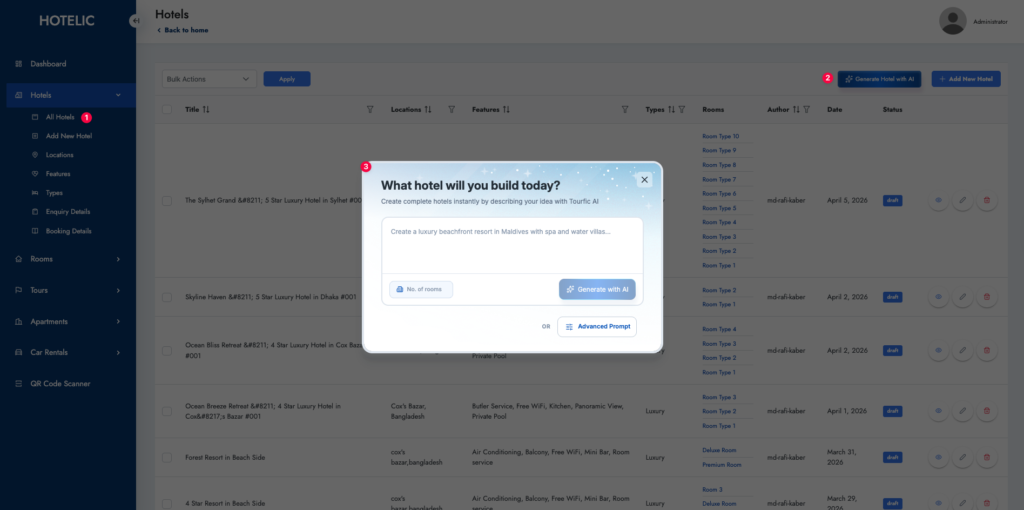
The Vendor Dashboard provides a centralized interface where administrators can view, manage, and control all platform activities efficiently. While it is designed primarily for vendors, administrators also have full access, allowing them to monitor listings, edit content, manage bookings, and generate AI-powered listings – all from one place.
Summary #
The Pro version gives you full control over tour creation, from generating ideas to final customization, combining automation with flexibility for fast, high-quality results. Alongside this, the Vendor Dashboard, accessible from the WordPress admin panel, allows you to easily manage listings, bookings, and overall platform activities, while giving administrators complete oversight and control.
