
Tourfic v2.21.0: Room Archive Support, Elementor Template Builder & Advanced Room Features
 February 23, 2026
 2 min read

The world of travel has changed completely. Ten years ago, people booked hotels based on photos. Today, travelers want more and want to feel like they are already there. They scroll through apps like TikTok, Instagram Reels, and YouTube Shorts. They watch short-form videos to decide where to go next.
This is called “Snackable Content.” It is fast, exciting, and very persuasive. If you run a travel website using Tourfic, you know that “User Experience” is everything. You want your visitors to see a tour and say, “Wow, I need to go there!” Video content is the best way to make that happen.
But there is a big problem that many website owners face. Video files are heavy, and they consume more space. If you put too many of them on your WordPress site, your pages will get very slow.
A slow website is bad for two reasons:
So, you have a difficult choice. Do you use video to get more bookings? Or do you skip video to keep your site fast? The good news is that you don’t have to choose. You can have both. This guide will show you a technical method to add high-speed video previews to your Tourfic listings without hurting your Core Web Vitals.
Most travel agents do the easy thing. They upload a video to YouTube and copy the link to their website. This creates a “YouTube Embed.” While this is easy, it is actually very bad for your website’s health.
When you embed a YouTube video, your website has to talk to YouTube’s servers. It has to load the YouTube video player, the play button, the tracking codes, and the suggested videos. This adds a lot of “bloat” to your page.
In technical terms, this hurts your Largest Contentful Paint (LCP).
LCP is a score from Google. It measures how long it takes for the main part of your page to show up. If you have a heavy YouTube player at the top of your tour listing, your LCP score will be red (bad).
To keep your Tourfic site fast, you should use a strategy called Self-Hosted Video. This means you put the video file directly on your own website server, but you optimize it perfectly first. This gives you full control.
Before we touch any code, we need to talk about the content. Not all videos are good for booking tours. Long, boring videos do not sell. You need short clips. These are called “Hooks.”
Most people book travel on their mobile phones. Because of this, you should try to use Vertical Video (9:16 ratio). This fills up the whole phone screen and looks much more engaging than old-fashioned wide videos.
Travel agents often see great videos on social media and think, “I wish I could show that on my website.” You cannot just link to an Instagram post. That looks unprofessional and takes the user away from your site. You need the actual raw video file (MP4) to host it yourself. Social media apps do not have a “Download” button. This is where you need a specialized tool.
To get the raw file from Snack Video, you can use a tool like dvSnackVideo. This is an online Snack Video Downloader designed to help you save videos for free in high quality.
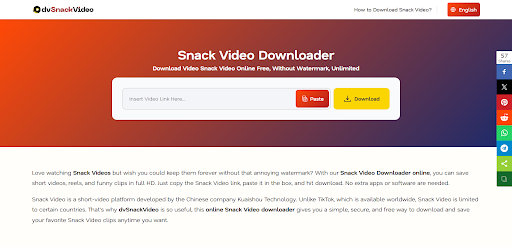
Here is how to do it:
Important Note: Always make sure you have permission to use videos that you did not create. It is best to use videos created by your own team or ask the creator for permission.
This is the most critical step. If you skip this, your website will crash. A raw video file from a phone or camera is usually very big. It might be 20MB, 50MB, or even 100MB.
You cannot put a 50MB file on a website. It will take forever to load on a 4G mobile connection. You need to compress it.
Your goal is to get your video file size under 2 Megabytes (MB). A video under 2MB file size can load instantly
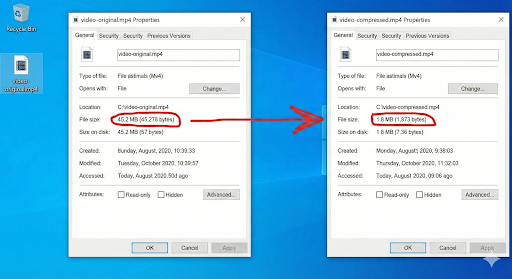
You can use free software like Handbrake or online video compressors.
Use these settings:
Now you have a tiny, fast video file. It is time to put it inside your Tourfic plugin.
Tourfic is a powerful plugin because it allows “Custom Fields” and has a flexible editor. We are not going to use the standard “Add Video” button, because that often creates a heavy player.
We will use a small piece of HTML code. This code is lightweight and fast and does not require any technical knowledge.
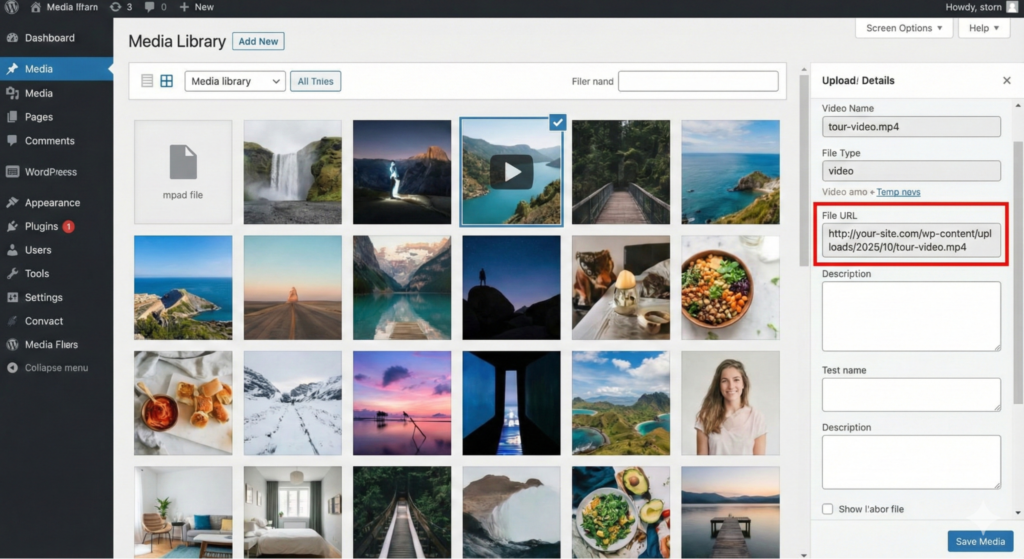
Go to your WordPress Dashboard. Click Media > Add New. Upload your compressed, silent MP4 file.
Once it is uploaded, look for the “File URL.” It will look something like this: https://your-site.com/wp-content/uploads/2025/01/my-tour-video.mp4
Copy that URL to save it in your clipboard.

Go to the Tourfic section in your dashboard. Open the tour you want to edit.
You can place this video in two places:
Switch your text editor from “Visual” mode to “Text” (or HTML) mode. Paste this exact code where you want the video to appear:
<video width=”100%” height=”auto” autoplay loop muted playsinline poster=”https://your-site.com/path-to-image.jpg”> <source src=”PASTE-YOUR-VIDEO-URL-HERE.mp4″ type=”video/mp4″> Your browser does not support the video tag.</video>
Let’s explain what this code does in simple English. This is important for understanding Core Web Vitals.
If you want your website to be even faster, you should use a Poster Image. In the code above, you saw an attribute called poster=”path-to-image.jpg”.
A poster image is a simple photo that sits on top of the video before it loads.
Imagine a user is on a very slow internet connection. It might take 2 seconds for your video to download. You do not want them to see a blank white box for 2 seconds. That will seem broken to the users.
The “Poster” shows them a nice photo instantly. Once the video is ready, the photo fades away and the video plays.
This improves your Perceived Load Speed. The user thinks the site loaded instantly because they saw the image right away.
You have done all the work. Now, let’s see the results. You should use a tool called Google PageSpeed Insights.
Create a test page with a standard YouTube embed. You will likely see:
Now test your Tourfic listing with the self-hosted, compressed video.
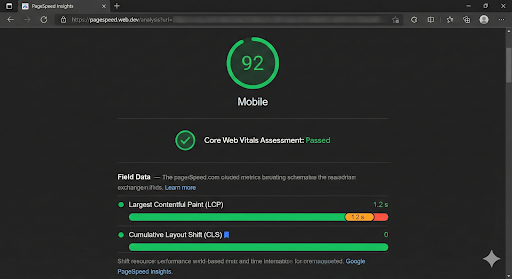
The difference is huge. By hosting it yourself, you removed all the heavy code from YouTube. Google will reward you with better rankings and users will enjoy a smoother experience.
Tourfic is a versatile plugin because it allows for “Multi-Vendor” data. This means you might have many different tour guides uploading content to your site. If every tour guide embeds a heavy YouTube video, your homepage will become very slow.
By using this method, you can set a standard for quality. You can tell your vendors: “Please send us the raw MP4 file.” Then, you can use compression tools to ensure every single video on your platform is optimized for speed.
Here are some things that might go wrong, and how to fix them.
1. The video is not playing on iPhone.
2. The video looks blurry.
3. The page jumps when the video loads.
Q: Can I use this method for 4K videos?
You can, but you shouldn’t. 4K videos are huge files and they will slow down your site. For a website preview, 720p or 1080p is enough.
Q: Does storing videos on my server take up space?
Yes, it does. However, since we are compressing the videos to be very small (2MB), you can host hundreds of videos without filling up your disk space.
Q: Is this better than Vimeo?
Yes, for short clips. Vimeo is great for long documentaries. But for a 10-second preview loop, self-hosting is much faster because you don’t have to load the Vimeo player code.
Q: How do I track views?
Since this is a simple HTML5 tag, standard Google Analytics usually won’t count “Video Views” automatically. You would need to set up a custom event in Google Tag Manager if you want to count how many people watched it.
Adding video to your travel website is a smart move. It helps people imagine themselves on the tour. It makes them click “Book Now.” But you must be smart about how you add it. Do not rely on lazy YouTube embeds that slow down your site. Take control of your content.If you follow these steps, your Tourfic site will remain lightning-fast, your SEO scores will stay green, and your customers will love the modern, snackable experience.

February 23, 2026
2 min read